 NinjaPrompter
Teleprompter with an Apple Watch remote
NinjaPrompter is a teleprompter for iPhone with an Apple Watch app that works as a remote, so you can control the prompter while your iPhone stays on the rig. From the watch, you can start, pause, resume, and restart your script, go back one paragraph, and change the scroll speed and font size with the Digital Crown. The watch shows the script's title but never its text.
The remote is part of Performance mode, so it comes with the 7-day trial and the subscription, not with the free plan.
How do I start the prompter from my Apple Watch?
Open a script in the prompter on your iPhone, open NinjaPrompter on your watch, and tap Play. You need NinjaPrompter 1.0.2 or later on an iPhone with iOS 18 or later, and an Apple Watch with watchOS 11 or later paired with it.
- If NinjaPrompter isn't on your watch yet, install it from the Watch app on your iPhone.
- On your iPhone, open a script in the prompter.
- Open NinjaPrompter on your watch. It shows the script's title and Ready.
- Tap Play.
Keep the iPhone unlocked, with NinjaPrompter in front, while you use the remote. The watch app has no account or settings of its own, because the script, your place in it, and your settings all stay on the iPhone. If a DJI Osmo Pocket films you, see how to start the Pocket and the script from your seat.
What do the buttons on the watch do?
The big button in the middle starts, pauses, and resumes the script, and its label changes with the prompter. The table below shows what it reads and what a tap does.
| The big button reads | When | A tap |
|---|---|---|
| Play | The script is ready to start | Starts the script, after the countdown if it's on |
| Cancel | The countdown is running | Stops the countdown |
| Pause | The script is scrolling | Pauses the script |
| Resume | The script is paused | Continues scrolling |
| Restart | The script has ended | Asks "Restart from the top?" |
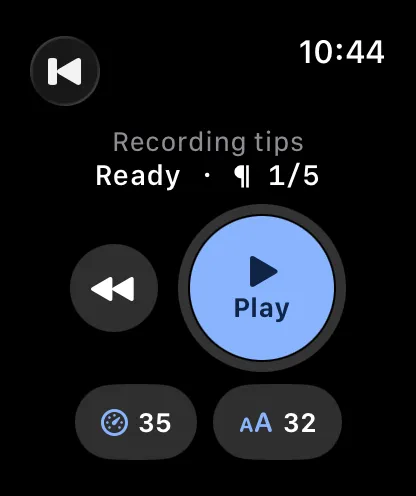
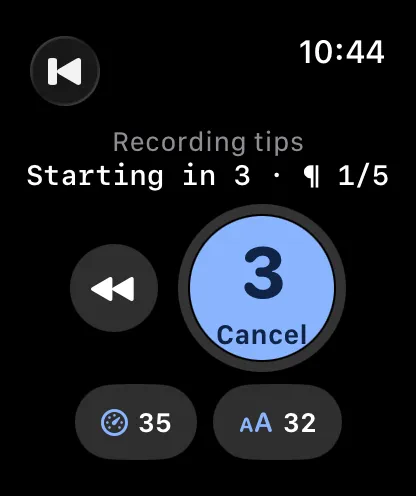
- The previous paragraph button, to the left of the big button, goes back one paragraph and pauses the script, like the same button on the iPhone. You can use it to go back after a mistake on camera.
- The restart button, in the top-left corner, takes the script back to the top at any time. The watch first asks "Restart from the top?" and warns, "Your saved position will be replaced."
- The two chips under the big button show the speed and the font size. Tap one to change it.
How do I change the speed or font size from my watch?
Tap the speed or font size chip, then turn the Digital Crown or tap − and +. The iPhone applies each step right away.
- Tap the speedometer chip for the speed, or the font size chip next to it.
- Turn the Digital Crown, or tap − or +. The screen shows the setting's name, Speed or Font, above the new value.
- To return to the remote, tap the back arrow in the top-left corner, or wait 4 seconds without turning the crown or tapping.
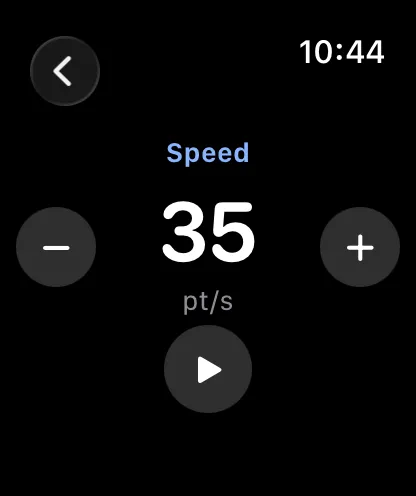
The watch changes the iPhone's Scroll speed and Font size settings, in steps of 5 pt/s (points per second) for the speed and 2 pt for the font size, like the sliders on the iPhone. Reading settings lists their ranges. When you reach the end of a range, the − or + button on that side is dimmed.
A small play or pause button stays on this screen, so you can start or pause the script without leaving it. At the end of the script, the button is dimmed, and you can restart the script from the main screen.
If you change the font size while the script scrolls, the prompter pauses it, because the text reflows, and keeps your place. Changing the speed doesn't pause it.
Can I use double tap?
Yes, on an Apple Watch with double tap (Series 9 and later, Ultra 2 and later, and SE 3). Double tap does what a tap on the big button does, so it starts, pauses, and resumes the script. On the Speed or Font screen, it presses the small play or pause button instead.
When does the watch buzz?
The watch buzzes when the script starts, or when the countdown starts if it's on, and again when the script stops. It follows the iPhone, not your tap, so pausing on the iPhone buzzes the watch too.
On the Speed and Font screens, the crown ticks with each step, and the watch buzzes when you reach either end of the range. It also buzzes if you tap the previous paragraph button while the watch shows paragraph 1.
What does the watch show (and what stays on the iPhone)?
The watch shows the title of the open script, the prompter's status, where you are in the script, and the speed and font size. It never shows the script's text.
| On the watch | What it shows |
|---|---|
| The title | The open script's title, cut to one line |
| The status line | Ready, Starting in 3 (counting down), Playing, Paused, or End of script, then your paragraph. "Playing · ¶ 6/14" means you're on paragraph 6 of 14. |
| The ring | How far you've scrolled through the script. It's full at the end. |
| The chips | The current speed and font size |
The iPhone and the watch exchange this through iOS and watchOS, and none of it goes to Odd Tempo, which makes the app. Section 6 of the privacy policy lists everything the two exchange.
What do the watch's messages mean?
When there's nothing to control, the watch shows a message that says why. These screens have no buttons. When you fix the cause on your iPhone, the remote comes back by itself.
| The watch says | What it means |
|---|---|
| Not connected: "Open NinjaPrompter on your iPhone and keep it nearby." | The watch can't reach your iPhone. It waits about a second before showing this, so a brief drop in the connection doesn't interrupt you. |
| No script open: "Open a script on your iPhone to control it here." | No script is open in the prompter. |
| Paused on iPhone: "Unlock it or return to NinjaPrompter." | The iPhone is locked, or NinjaPrompter isn't the app in front. |
| Part of Performance mode: "Unlock it on your iPhone to control the prompter from your watch." | The free plan doesn't include the remote. |
When a message appears, the watch closes anything you had open, such as the Speed screen or the "Restart from the top?" question, so the remote comes back on its main screen.
Why doesn't Play on my watch do anything?
The iPhone ignores Play from the watch while Reading settings, Mirroring, Delivery cues, the Cue guide, or the "Restart from the beginning?" question is open on the iPhone. Close it on the iPhone, then tap Play again.
The watch controls the prompter only while the prompter is open and in front on the iPhone. If you lock the iPhone or switch to another app, the prompter pauses, and the watch shows Paused on iPhone instead of the remote.
The watch shows only what the iPhone reports. If a tap doesn't reach the iPhone, the button and the status stay as they were, and you can tap again.
Is the Apple Watch remote free?
No, it's part of Performance mode, which comes with the 7-day trial and the subscription. The remote works whether the Performance mode switch is on or off.
On the free plan, the watch shows Part of Performance mode instead of the remote. There's nothing to buy on the watch. You can subscribe in NinjaPrompter on your iPhone.
The prompter checks your plan each time you open a script. If your trial ends while the prompter is open, the watch keeps working until you close it. If you subscribe while a script is open, close it and open it again to use the remote.
The prompter's controls on the iPhone, such as Play, Pause, and the Scroll speed slider, stay free. Scripts on your iPhone explains what the free plan limits, and the support page covers the trial and the subscription.